

Become a Server Admin
Step-by-step guide to gaining administrator privileges on your CS1.6 server.
Overview
To become an admin on a CS 1.6 server, you'll need to connect to the server, open the in-game console, and use RCON commands to grant yourself admin privileges through AMXModX.
RCON Password
Remember to keep your RCON password safe. You can find it on your Free Server Panel if you need to retrieve it.
Step-by-Step Guide
Step 1: Connect to Your Server
- Launch Counter-Strike 1.6
- Connect to your server
- Wait until fully loaded
Step 2: Open Console
Press § (section symbol, usually below ESC key) to open the in-game console.
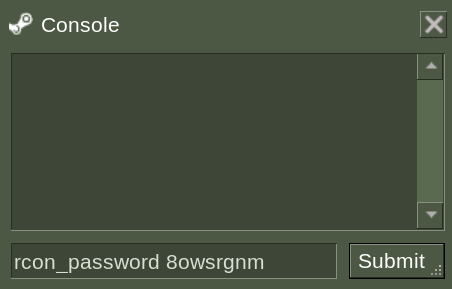
Step 3: Login with RCON
Enter your RCON password using this command:
rcon_password yourpasswordReplace yourpassword with your actual RCON password from the panel.
Step 4: Verify RCON Access
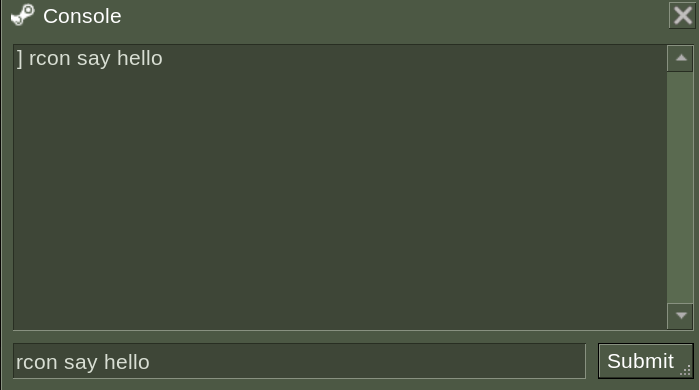
Test if RCON is working by sending a message:
rcon say helloYou can replace "hello" with any message to test RCON access.
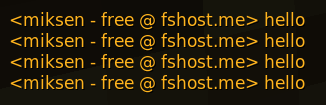
Step 5: Confirm RCON Works
If everything is working correctly, you'll see the message appear in-game.
Step 6: Add Yourself as Admin
Use the amx_addadmin command to grant yourself admin privileges:
rcon amx_addadmin "nickname" "flags"Example:
rcon amx_addadmin "PlayerName" "abcdefghijklmnopqrstu"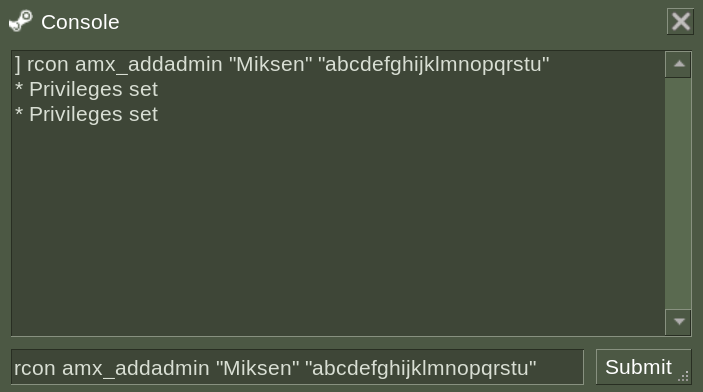
Full Admin Flags
Using "abcdefghijklmnopqrstu" grants all admin permissions. See the Admin Levels table below for individual flag meanings.
Step 7: Access Admin Menu
Congratulations! You're now an administrator. Access the admin menu with:
amxmodmenuImportant Security Warning
We highly recommend avoiding entering your password directly in public chat.
If you've already done so and encounter an error message: You have no entry to the server...
Please get in touch with our support team immediately via Discord.
AMXModX Admin Levels
Complete reference of admin access flags and their permissions:
| Access Level | Description |
|---|---|
| a | Immunity (cannot be kicked/banned/slayed/slapped and affected by other commands) |
| b | Reservation (can join on reserved slots) |
| c | amx_kick command |
| d | amx_ban and amx_unban commands |
| e | amx_slay and amx_slap commands |
| f | amx_map command |
| g | amx_cvar command (not all cvars will be available) |
| h | amx_cfg command |
| i | amx_chat and other chat commands |
| j | amx_vote and other vote commands |
| k | Access to sv_password cvar (by amx_cvar command) |
| l | Access to the amx_rcon command and ability to change server's RCON password |
| m | Custom level M (for additional plugins) |
| n | Custom level B (for additional plugins) |
| o | Custom level C (for additional plugins) |
| p | Custom level D (for additional plugins) |
| q | Custom level E (for additional plugins) |
| r | Custom level F (for additional plugins) |
| s | Custom level G (for additional plugins) |
| t | Custom level H (for additional plugins) |
| u | Menu access |
Permission Examples
Full Admin Access
All permissions:
rcon amx_addadmin "PlayerName" "abcdefghijklmnopqrstu"Moderator Access
Kick and ban only:
rcon amx_addadmin "ModeratorName" "abcd"Flags:
- a = immunity
- b = reserved slot
- c = kick
- d = ban
Basic Admin
Essential permissions:
rcon amx_addadmin "AdminName" "abcdefi"Flags:
- a = immunity
- b = reserved slot
- c = kick
- d = ban
- e = slay
- f = map change
- i = chat commands
Common Admin Commands
Once you're an admin, you can use these commands:
Player Management
Kick player:
amx_kick <player> [reason]Ban player:
amx_ban <minutes> <player> [reason]Slay player:
amx_slay <player>Server Control
Change map:
amx_map <mapname>Execute config:
amx_cfg <config file>Chat Commands
Admin says:
amx_say <message>Admin chat:
amx_chat <message>Voting
Start vote:
amx_vote <question> <option1> <option2>Free vs Pro Servers
Free Server Limitation
Please note that our free CS 1.6 service does not provide permanent admin privileges.
Admin access is temporary and will reset either when the server restarts or after a set period.
Upgrade to Pro
For permanent admin privileges on your CS 1.6 server, consider upgrading to Pro:
Pro benefits:
- Permanent admin access
- Custom admin configurations
- FTP access for admin file management
- Priority support
- No advertisements
Troubleshooting
RCON password doesn't work
Check:
- Password copied from the panel correctly
- No extra spaces in the command
- Using
rcon_password, notrcon login - Server is actually your server
"You have no entry to the server" error
This typically means:
- RCON password was entered incorrectly
- You may have typed a password in a public chat (security risk)
Solution: Contact support immediately via Discord.
amx_addadmin command not working
Verify:
- RCON is logged in (
rcon statusto test) - Command syntax is correct
- Nickname is in quotes
- Flags are in quotes
- No typos in the command
Admin menu not appearing
Try:
- Type
amxmodmenuin console - Verify admin was added successfully
- Reconnect to the server
- Check admin flags include 'u' (menu access)
Admin commands not working
Check:
- You have the required flag for that command
- Command syntax is correct
- You're targeting the correct player
- Command exists on this server
Security Best Practices
Protect Your RCON Password
Never Share RCON Password
- Don't type in public chat
- Don't share with untrusted players
- Change if compromised
- Use strong passwords
Admin Responsibility
As an admin:
- Don't abuse privileges
- Use kick/ban fairly
- Follow server rules
- Help other players
- Report issues
Flag Assignment
When adding other admins:
- Give minimum necessary permissions
- Don't give 'l' flag (RCON access) to untrusted admins
- Use immunity (' a') carefully
- Review assigned flags regularly
Advanced Admin Management
Multiple Admins
Add multiple admins:
rcon amx_addadmin "Admin1" "abcdef"
rcon amx_addadmin "Admin2" "abcd"
rcon amx_addadmin "Moderator" "abc"
Temporary Admin
Limited time admin:
rcon amx_addadmin "TempAdmin" "bcd"No immunity or RCON access, just basic moderation.
View Current Admins
List admins:
amx_whoShows all current admins on the server.
Related Resources
- RCON Commands - Full RCON command reference
- AMXModX Commands - Official documentation
- Support - Get help