

Become a Server Admin
Complete guide to gaining admin access on your CS2 Pro server.
Pro Server Only
Admin system commands are exclusive to Pro servers. This functionality is not available on free servers.
Setup via Pro Panel
The Pro Panel is the easiest way to add admins. No console or in-game commands are needed.
Step 1: Find Your SteamID64
Open steamid.io and paste your Steam profile URL. Copy the steamID64 value, which is a 17-digit number starting with 7656119.
Step 2: Open the Admin Page
- Go to fshost.me/pro/servers
- Click on your server name
- Open the Settings tab. The Edit button in the top right opens the same page
- Click Server admins in the Server settings menu on the left
Step 3: Add Yourself
Fill in the Add admin form and click + Add.
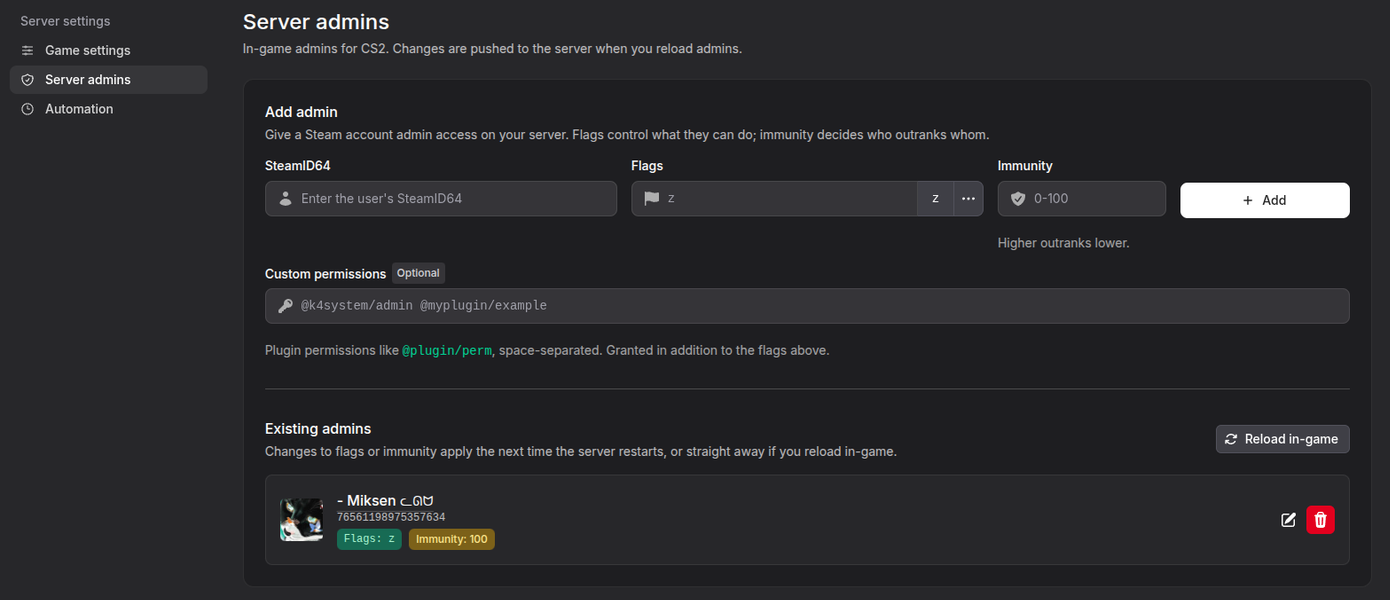
| Field | Value |
|---|---|
| SteamID64 | Your 17-digit ID from Step 1 |
| Flags | z for full permissions |
| Immunity | 100, the highest level |
| Custom permissions | Optional. Leave empty unless a plugin requires it |
About the z Flag
The z flag grants every permission at once, so there is no need to pick flags individually. The z button next to the Flags field fills it in for you, and the ... button lets you pick individual flags. Keep it for yourself and co-owners. For staff, use limited flags from the Permission Flags table below.
Step 4: Apply the Changes
Click Reload in-game next to Existing admins. Your admin access applies right away, without a server restart.
Your entry then appears under Existing admins with the Steam avatar, flags and immunity. Use the pencil icon to edit it, or the bin icon to remove it.
Changes Not Showing In-Game
Click Reload in-game after adding or editing an admin. Otherwise the server keeps the old admin list until the next server restart.
Other Admin Access Methods
In-Game Admin Access
Quick Start:
- Connect to your Pro server
- Open in-game chat
- Enter login command:
/login YOUR_RCON_PASSWORDSuccess Confirmation:
[Admin Manager] Processing login request...
[Admin Manager] Login successful. You are now an admin.
Admin Commands
Basic Admin Commands
| Command | Example | Description |
|---|---|---|
/login [password] | /login mypass123 | Authenticate as server admin |
/admins | - | Display list of current admins |
/addadmin help | - | Show addadmin usage guide |
/rolehelp | - | Display role management commands |
Adding Admins
By SteamID with flags:
/addadmin 76561198975357634 99 zBy SteamID with role:
/addadmin 76561198975357634 ModeratorBy player name:
/addadmin PlayerName HelperSteamID64 Format
Use the SteamID64 format for permanent admin assignments. Find yours at steamid.io
Removing Admins
/removeadmin 76561198975357634
/removeadmin PlayerName
Role Management
Creating Roles
Roles allow organized permission structures with immunity levels.
Command Structure:
/css_addrole <RoleName> <Flags> <Immunity>Example Roles:
VIP Role:
/css_addrole VIP ao 10Reservation access, immunity 10
Moderator Role:
/css_addrole Moderator abdh 50Ban, kick, chat management, immunity 50
Admin Role:
/css_addrole Admin abcdefghijklmn 100Full admin permissions, immunity 100
Owner Role:
/css_addrole Owner z 100Complete control, maximum immunity
Permission Flags
| Flag | Permission | Description |
|---|---|---|
a | Ban | Ban players |
b | Kick | Kick players |
c | Map | Change maps |
d | Chat | Manage chat |
e | Vote | Control votes |
f | Cvars | Modify server settings |
g | Generic | Generic admin |
h | Cheats | Enable sv_cheats |
i | Slay | Kill players |
j | Team | Manage teams |
k | Config | Execute configs |
l | Reservation | Reserved slots |
n | Custom | Custom permissions |
o | Rcon | RCON access |
z | Full | All permissions |
Assigning Roles
/css_addadmin PlayerName VIP
/css_addadmin 76561198975357634 Moderator
Managing Roles
List all roles:
/css_rolesDelete a role:
/css_removeRole RoleNamePlayer Management
Common Moderation Commands
Kick Player:
/css_kick PlayerName
/css_kick PlayerName Reason for kick
Ban Player:
/css_ban PlayerName 0
/css_ban PlayerName 60 Breaking rules
Minutes: 0 = permanent
Temporary Ban:
/css_ban PlayerName 1440 # 24 hour ban
/css_ban PlayerName 10080 # 7 day ban
Mute Player:
/css_mute PlayerNameUnmute Player:
/css_unmute PlayerNameImmunity System
Immunity determines the admin hierarchy. Higher immunity cannot be affected by lower immunity admins.
Immunity Levels:
- 0-25: Basic moderators
- 26-50: Moderators
- 51-75: Senior moderators
- 76-99: Admins
- 100: Owner/root access
Example Hierarchy:
/css_addrole Helper abd 10 # Can kick/ban immunity <10
/css_addrole Mod abdfh 50 # Can manage immunity <50
/css_addrole Admin z 99 # Can manage immunity <99
/css_addrole Owner z 100 # Cannot be managed by anyone
Role Examples
Small Server Setup
/css_addrole VIP o 5
/css_addrole Admin z 99

/css_addadmin 76561198975357634 Admin
/css_addadmin FriendName VIP
Large Community Setup
/css_addrole VIP o 5
/css_addrole Helper abd 20
/css_addrole Moderator abdefh 50
/css_addrole Admin abdefghiklmn 75
/css_addrole Owner z 100

/css_addadmin 76561198975357634 Owner
/css_addadmin AdminSteamID Admin
/css_addadmin ModSteamID Moderator
Best Practices
Admin Security
- Use strong, unique RCON passwords
- Never share RCON password publicly
- Grant minimum necessary permissions
- Regularly review the admin list
- Use the web interface for easier management
Permission Guidelines
- Start with restrictive permissions
- Grant additional access as trust builds
- Use immunity levels strategically
- Document your role structure
- Remove inactive admins
Troubleshooting
Login command not working
Verify:
- Using the correct RCON password. It is shown under Connection info on the Overview tab of your server's page
- Password has no typos or extra spaces
- You're on the correct server
- Server is Pro tier, not free
Cannot Admin
Check:
- Your immunity is higher than the target
- Using the correct SteamID64 format
- Role name exists (if using roles)
- Syntax is correct
Changes not persisting
Admin changes save automatically to the database. If changes don't persist:
- Verify you have sufficient permissions
- Check server logs for errors
- Contact support if the issue continues
Getting Help
Need assistance with admin setup?
- Pro Panel: Manage admins under Settings → Server admins on your server's page
- Discord: Join FSHOST Discord
- Support: Contact #pro-support channel