

Workshop Maps
Run Steam Workshop maps and collections on your CS2 Pro server.
Pro Server Only
Workshop maps are only available on Pro servers. Free servers use the default map pool.
Quick Version: One Workshop Map
- Copy the map's address from the Steam Workshop
- In the Pro Panel, open your server, then the Settings tab
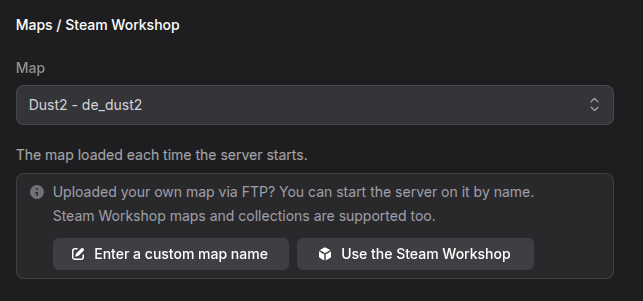
- Under Maps / Steam Workshop, click Use the Steam Workshop
- Paste the address in the field below Workshop map ID. The panel reads the ID for you
- Click Save changes and restart the server
The steps below explain each part, and how to add a collection.
Map or Collection
| Setting | What it does |
|---|---|
| Workshop map ID | The server starts on this one map. Required when you use the Workshop |
| Workshop collection ID | Downloads every map in the collection so you can switch between them. Optional |
You can set both. A collection on its own cannot be saved, because the server needs a map to start on.
Step 1: Find the IDs
- Open the CS2 Steam Workshop
- Open the map or collection
- Copy the number after
id=in the address bar
For example, in https://steamcommunity.com/sharedfiles/filedetails/?id=3070238628 the ID is 3070238628.
You can also paste the whole address. The panel reads the ID for you.
Step 2: Choose the Steam Workshop
- Go to the Pro Panel
- Click on your server name
- Open the Settings tab
- Under Maps / Steam Workshop, click Use the Steam Workshop, or pick Steam Workshop in the Map list
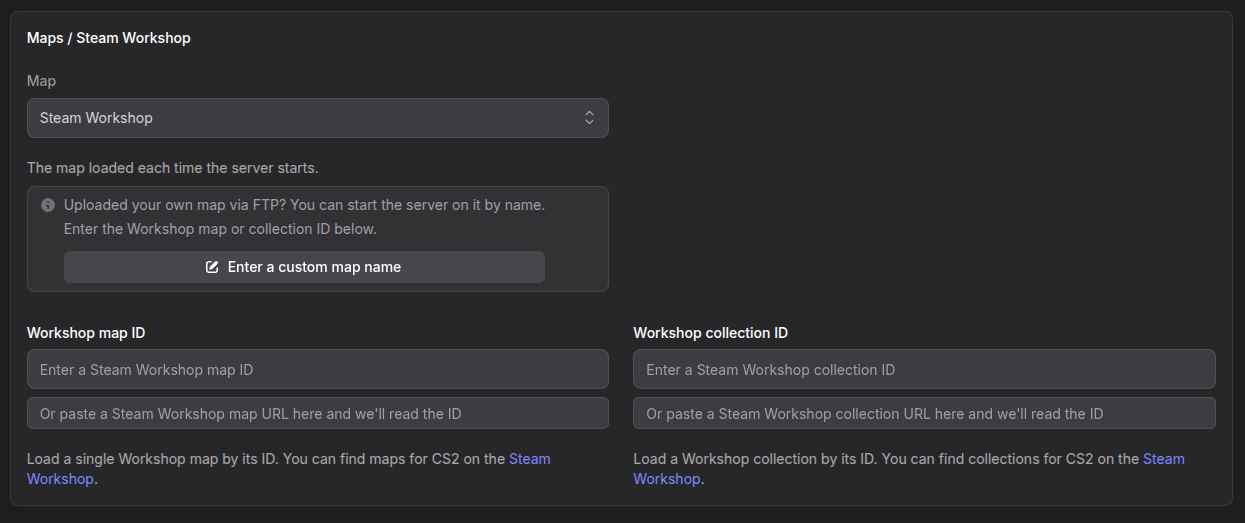
Map changes to Steam Workshop, and the Workshop map ID and Workshop collection ID fields appear.
Step 3: Enter the IDs
- Enter the map ID under Workshop map ID, or paste the map's address in the field below it
- If you want a collection, enter its ID under Workshop collection ID
The panel checks each ID with the Steam Workshop and shows the map's name and size, or how many maps the collection has.
| Message | What to do |
|---|---|
| This is a collection, not a single map. | Click Move to collection field |
| This is a single map, not a collection. | Click Move to map field |
| This ID wasn't found on the Steam Workshop. It may be private or deleted. | Check the ID. Private and deleted items cannot be used |
| This isn't tagged as a CS2 map. CS:GO-era maps may not load on your server. | It may be a CS:GO map. Try it, and pick another map if it does not load |
| item(s) in this collection are private or deleted and won't download. | Those maps are skipped. The rest of the collection works |
If an ID is wrong, Save changes refuses it with one of these:
- The workshop map ID was not found on the Steam Workshop. It may be private or deleted.
- The workshop map ID is not a Counter-Strike 2 workshop item.
- The workshop map ID is a collection. Please enter it in the workshop collection field instead.
- The workshop collection ID is a single map. Please enter it in the workshop map field instead.
Step 4: Save and Restart
Click Save changes, then restart the server. The first start on a new map takes longer, because the server downloads it from the Workshop first.
Changing Maps In Game
Admins can change to any Workshop map by its ID:
!wsmap 3070238628Or from the console after RCON login:
fake_rcon host_workshop_map 3070238628Normal maps still work with !map:
!map de_mirageSee Pro Server Commands for the full list.
Players Downloading Maps
Players do not need to subscribe to the map. CS2 downloads it from the Workshop when they join. Large maps take a moment on the first join.
Troubleshooting
The server does not start on the Workshop map
- Check that the map is public on the Workshop
- Check that it is a CS2 map, not a CS:GO map
- The first start downloads the map, so give it a few minutes. Check progress on the Console tab
"We couldn't reach the Steam Workshop to check this ID."
Steam is not answering right now. You can still save your settings. The ID is used as you entered it.
"You're checking IDs too quickly."
The panel checks up to 10 IDs per minute. Wait a minute and try again.
The server is back on a normal map after a restart
The server always starts on the map set under Map in Game settings. Set your Workshop map there if you want it to stay after a restart.