

FTP Access
FTP lets you upload and edit files on your Pro server, such as configs, plugins and custom maps. It is set up by us on request, per server.
Pro Server Only
FTP is only available on Pro servers, and only for some games. The pricing page for your game says whether FTP is included.
Before you change anything, read Before You Modify Files.
Step 1: Request FTP Access
- Open a ticket on Pro Support
- Pick the FTP category
- Tick the server under Related servers
- Say what you want to change, for example "upload custom maps" or "install a plugin"
We then set up FTP for your server and give you access to the folders you need. See Support Tickets for how tickets work.
Until FTP is set up, the Files tab says FTP access hasn't been set up for this server yet.
Support After Changes
We can enable FTP for your server, but our support is limited once you install your own plugins or mods, or make major changes to the files.
Step 2: Find Your FTP Details
- Go to the Pro Panel
- Click on your server name
- Open the Files tab
The FTP access box shows everything you need to log in.
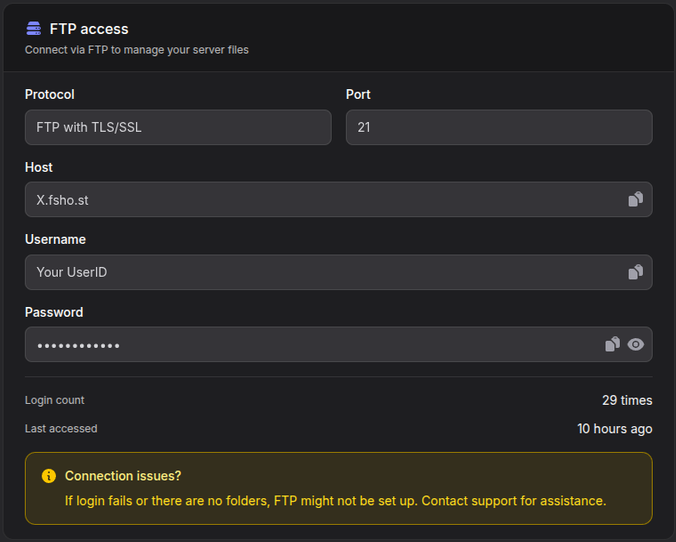
| Field | What it is |
|---|---|
| Protocol | FTP with TLS/SSL. The connection is encrypted |
| Port | 21 |
| Host | The FTP address of your server's location, for example X.fsho.st |
| Username | Your FSHOST account user ID |
| Password | Your FTP password. Click the eye icon to show it, or the copy icon to copy it |
Use the copy icons next to Host, Username and Password so you do not mistype them.
Below the details, Login count and Last accessed show how often and how recently someone logged in with this FTP account. If you see logins you did not make, open a ticket straight away.
Keep Your FTP Password Private
Anyone with your FTP details can change or delete every file on your server. Do not share them in public channels.
Step 3: Connect With an FTP Client
You need an FTP client that supports FTP over TLS. We recommend FileZilla (Windows, macOS and Linux) or WinSCP (Windows).
FileZilla
- Open File → Site Manager and click New site
- Set Protocol to FTP - File Transfer Protocol
- Enter the Host and set Port to
21 - Set Encryption to Require explicit FTP over TLS
- Set Logon Type to Normal
- Enter your User and Password
- Click Connect
The first time you connect, FileZilla asks you to trust the server's certificate. Tick Always trust this certificate in future sessions and click OK.
WinSCP
- Click New Site
- Set File protocol to FTP and Encryption to TLS/SSL Explicit encryption
- Enter the Host name, Port number
21, User name and Password - Click Login and accept the certificate
What You Can Access
You do not get the whole server. You see the folders we set up for you, each as a folder at the top level, for example a config folder or a plugins folder. If you need access to another folder, ask on your ticket.
For where files live in each game, see the File Manager page.
Restart After Changes
Most games only read config and plugin files when they start. Restart the server from the Pro Panel after uploading.
FastDL (Fast Downloads)
Custom maps, models and sounds have to be downloaded by players when they join. FastDL serves these files from a web server, which is much faster than downloading them through the game server.
FastDL is available for these games:
- Counter-Strike 1.6
- Counter-Strike: Source
- Half-Life Deathmatch
- Call of Duty 2
- Call of Duty 4: Modern Warfare
Ask for it on your FTP ticket. Once it is set up, the Files tab shows Your FastDL URL, in the form http://X.fsho.st/ServerID/fastdl. X.fsho.st is the address of the location your Pro server runs in, for example our server in Frankfurt or Helsinki. Each location has its own address, and it is the same as the FTP Host. ServerID is your server number, the number in P1234. Copy the URL from the Files tab rather than typing it.
To use it:
- Connect with FTP and open the
fastdlfolder - Upload a copy of the files players need, using the exact same paths as on the server. A file the server loads from
maps/de_custom.bspgoes tofastdl/maps/de_custom.bsp - Point your game at the FastDL URL in the server config. On CS 1.6, edit the config template, see CS 1.6 Config Files:
| Game | Setting |
|---|---|
| Counter-Strike 1.6, Counter-Strike: Source, Half-Life Deathmatch | sv_downloadurl "<your FastDL URL>" |
| Call of Duty 2, Call of Duty 4 | sv_wwwBaseURL "<your FastDL URL>" and sv_wwwDownload 1 |
- Restart the server
For a full walkthrough on CS 1.6, see Custom Maps and FastDL.
HTTP Only
Keep the FastDL URL on http://. Most games cannot download over https://.
Team Members
FTP access belongs to the server owner. Team members do not get FTP, and the Files tab tells them so. If a teammate needs to upload files, the owner has to do it or share the files with them another way.
Troubleshooting
Login fails
- Check that you copied the Host, Username and Password from the Files tab with the copy icons
- Make sure Encryption is set to Require explicit FTP over TLS (FileZilla) or TLS/SSL Explicit encryption (WinSCP)
- If it still fails, FTP might not be set up for this server yet. Open a ticket with the FTP category
I can log in, but there are no folders
FTP has not been set up for this server yet, or the folders are not mounted. Open a ticket with the FTP category.
The connection times out when listing folders
Your client is probably using active mode. In FileZilla, open Edit → Settings → Connection → FTP and select Passive (recommended). Firewalls and some routers block active mode.
My uploaded file has no effect
- Check that the file is in the right folder, with the right name and extension
- Restart the server so the game loads the file
- For plugins, check the Console tab for errors when the server starts
Upload fails because the disk is full
FTP comes with a storage quota. Delete files you no longer need, such as old demos or unused maps, or ask on a ticket for more space.