

Team Access
Share control of your Pro server with teammates. They use their own FSHOST accounts, so you never hand out your login.
Pro Server Only
Team access is part of the Pro Panel. This functionality is not available on free servers.
What Team Members Can Do
A team member can run the server day to day. Everything tied to money, admin rights and the console stays with you as the owner.
| Area | Team member | Owner |
|---|---|---|
| Start, stop and restart the server | Yes | Yes |
| Update the server | Yes | Yes |
| Change Game settings | Yes | Yes |
| Billing | No | Yes |
| Automation | No | Yes |
| In-game admins (Server admins) | No | Yes |
| Console commands | No | Yes |
| Add, accept or remove team members | No | Yes |
Each server has its own team. You can add up to 2 team members per server. The counter under Team members shows how many places are used, for example 0 / 2.
Open the Team Tab
- Go to the Pro Panel
- Click on your server name
- Open the Team tab
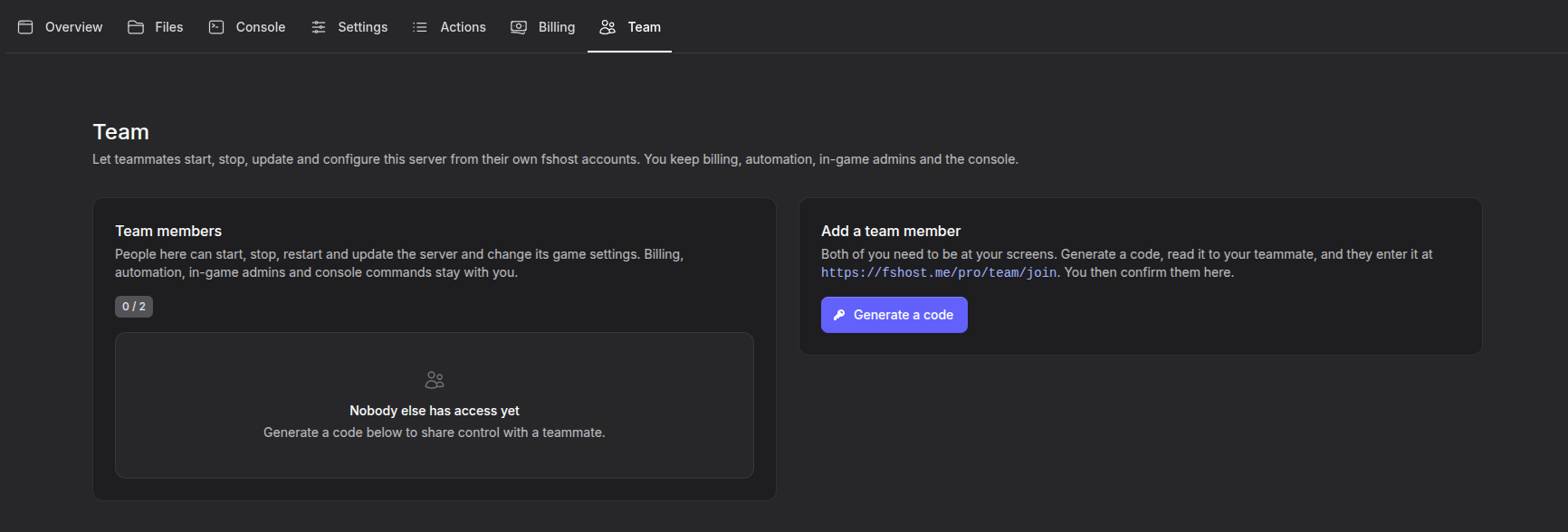
Add a Team Member
Both of you need to be at your screens at the same time. Your teammate needs an FSHOST account and must be logged in.
10 Minute Limit
A code is valid for 10 minutes. Your teammate has to open the join page and enter the code within that time, and you accept them on the Team tab. After 10 minutes, generate a new code and start again.
Step 1: Generate a Code
Click Generate a code in the Add a team member box.
Step 2: Give the Code to Your Teammate
Read the code to your teammate, for example over voice chat.
Keep the Code Private
Only give the code to the person you want to add. Do not post it in a public Discord channel or chat.
Step 3: Your Teammate Enters the Code
Your teammate opens fshost.me/pro/team/join and enters the code. They have 10 minutes from when you generated it. See Join a Server Team for what they see on their side.
Step 4: Accept Your Teammate
Stay on the Team tab. Once your teammate has entered the code, a request appears in the Add a team member box. It reads (username) wants to join and shows which account entered your code and how long ago.
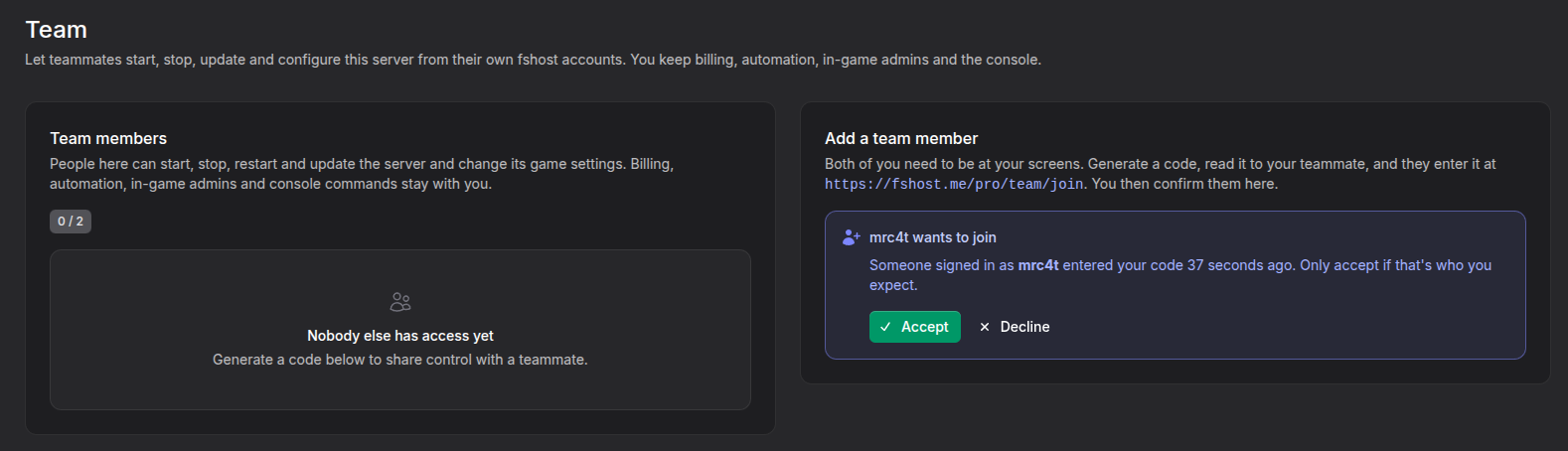
- Click Accept if the username is the person you expect
- Click Decline if you do not recognize the username
Check the Username
Only accept if that is who you expect. Anyone who gets hold of the code can send a request, so an unknown username means the code reached the wrong person. Decline it and generate a new code.
Nobody gets access from the code alone. A teammate is only added after you click Accept.
They now appear under Team members with the date they were added, and can control the server from their own account. The number next to the Team tab shows how many team members the server has.
Join a Server Team
This part is for the teammate. You help run a Pro server that someone else pays for, so you do not need a Pro server or balance of your own.
Step 1: Open the Team Access Page
Log in to your FSHOST account and open fshost.me/pro/team/join.
Step 2: Enter the Code
The server owner generates a code on their server's Team tab and reads it to you. Enter it in the Join a server team box. The code is valid for 10 minutes.
Step 3: Wait for the Owner
The box shows Waiting for (owner) to confirm, with the server ID and game you asked to join. Check that they match the server you expect.
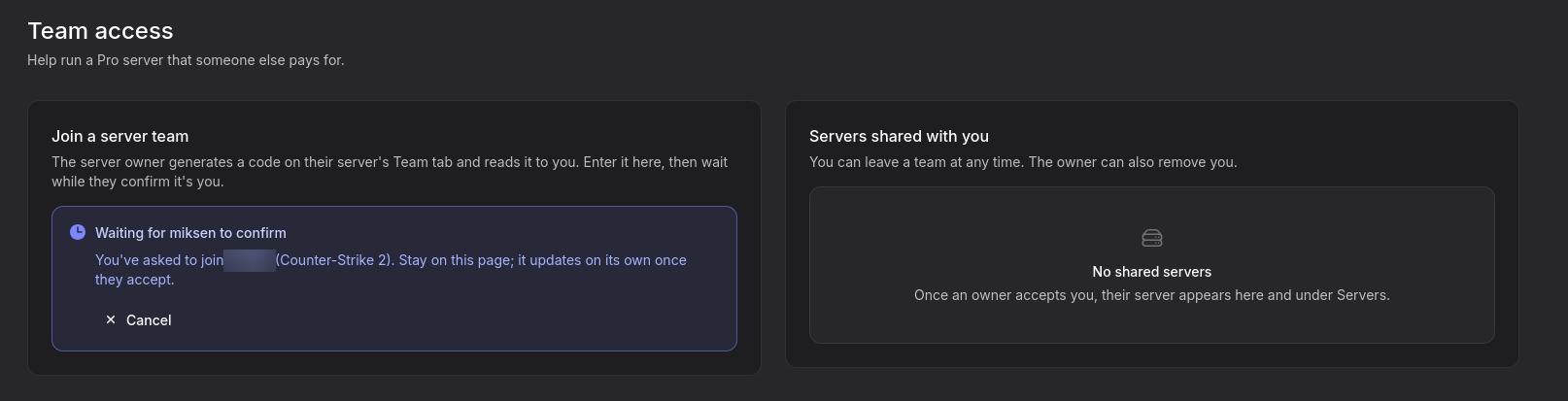
Stay on the page. It updates on its own once the owner accepts. Click Cancel to withdraw your request.
Step 4: Open the Server
Once the owner accepts, the server appears under Servers shared with you on the same page, and in your Server List.

In the Server List, shared servers sit in their own Shared with you section, separate from servers you pay for. Each one is marked Owned by (username), so you can tell whose server it is. Click the server or its Edit button to control it, the same way as your own servers.
Leaving a Team
You can leave a team at any time from the Servers shared with you box. The owner can also remove you.
Remove a Team Member
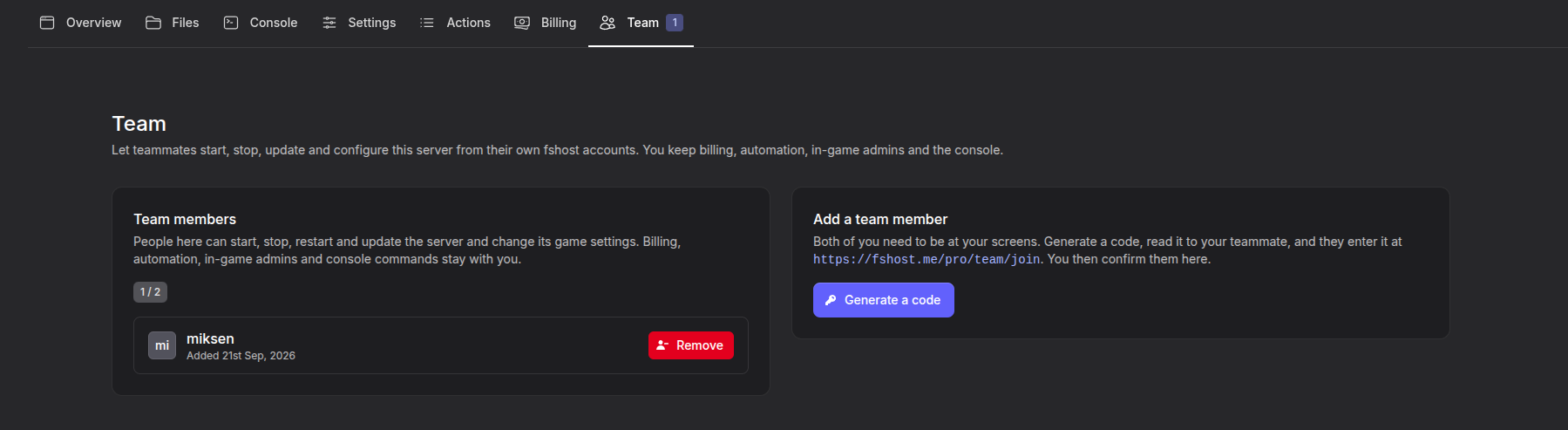
- Open the Team tab
- Find the person under Team members
- Click Remove next to their name
They lose access to the server. This frees a place, so you can add someone else with a new code.
Review Your Team
Remove people who no longer need access, for example after a tournament or when someone leaves your team.
Troubleshooting
The code no longer works
A code is valid for 10 minutes. If your teammate did not enter it in time, click Generate a code again and repeat the steps.
Stuck on Waiting for the owner to confirm
The owner has to accept your request on their server's Team tab. Ask them to keep that tab open. If nothing happens, click Cancel, ask for a new code and try again.
My teammate cannot change billing, automation or admins
This is by design. Billing, Automation, Server admins and console commands stay with the server owner.
My teammate needs in-game admin rights
Team access covers the Pro Panel only. It does not give admin rights inside the game. Add them under Server admins instead, see Become a Server Admin for Counter-Strike 2.
Need Help?
- Pro Support - Follow the options on the Support page on our website